 Sey
SeyCustom domains
Custom domains let the portal live alongside your product, such as feedback.example.com. They require a plan that includes them.
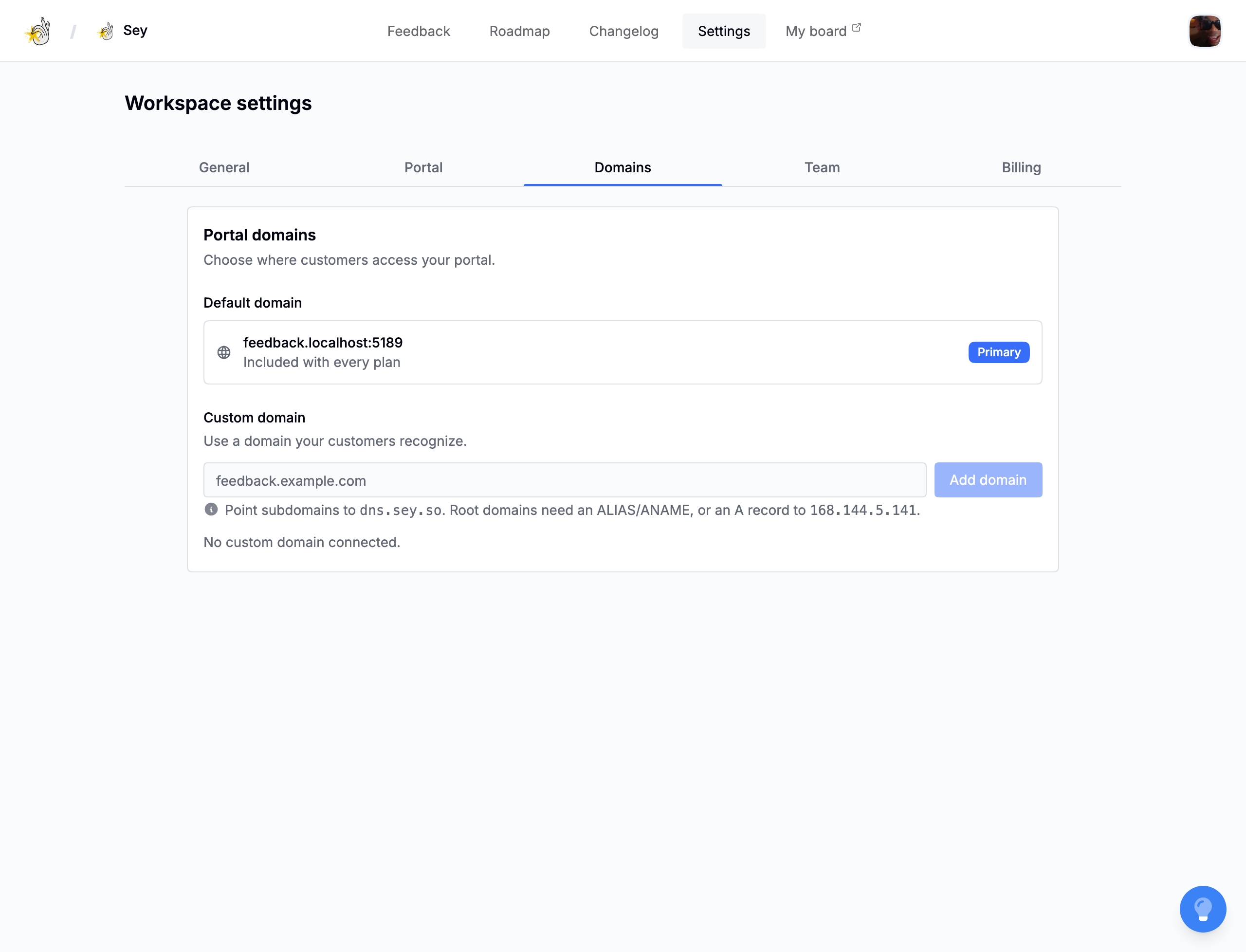
Generated domain
Every workspace receives a generated https://your-slug.sey.so domain. It stays available after you add a custom domain, and you can make either the generated domain or an active custom domain primary.
Add a custom domain
Adding a custom domain takes two short steps at Sey, and one propagation step at your DNS provider. Have access to your DNS records before you start.
- Open Settings → General, then scroll to Domains.
- Under Add a custom domain, enter the hostname you want to use, such as
feedback.example.com. - Select Add domain. Sey stores the hostname in a pending state and shows you the exact DNS record to add.
- At your DNS provider, add a CNAME for your subdomain (such as
feedback.example.com) pointing todns.sey.so. - Wait for the DNS change to propagate, then return to Sey and select Verify on the domain. Verification fails if propagation is not finished yet; you can try again without adding the record a second time.
- After the domain becomes active, select Make primary if customers should use it by default. The generated Sey domain stays available as a fallback.
DNS changes can take anywhere from a few minutes to several hours to propagate. Keep the generated Sey URL available until verification succeeds, and reach the portal through it in the meantime.
If verification keeps failing, the most common causes are: the CNAME points at the wrong target, the record was added at the wrong hostname, or multiple conflicting records exist for the same hostname (CNAME records cannot coexist with other record types at the same hostname). Remove the conflicting record, wait for propagation, and verify again.
Reserved hostnames
A few hostnames cannot be used as custom domains: app.sey.so, dns.sey.so, and sey.so.
Plan limits
The number of custom domains you can keep active at once is limited by your plan. If adding another would exceed the limit, Sey asks you to remove one or upgrade. Adding the first custom domain requires a plan that includes them.
See Billing and plans.
Make a domain primary
Only one domain is primary at a time. Select Make primary on any active domain, generated or custom, to control where customers land by default.